
What Is a PC/CPU Bottleneck?
Every experienced builder faces a time when upgrading a single component yields almost nothing. That frustration usually traces back to one root cause: a bottleneck. At its core, a PC bottleneck occurs when one component struggles to keep pace with the rest of the system, forcing faster hardware to sit idle while the slower piece catches up. Think of it this way: if your processor is feeding instructions to a powerful graphics card at half the required rate, that GPU never reaches peak performance. The CPU acts as the gatekeeper, and all data in the system slows to its pace. This imbalance is not just theoretical. In gameplay, you might notice frame drops even with a top-tier setup. The processor cannot feed the GPU fast enough to maintain ultra-smooth gameplay.
Bottlenecks are tricky because they are not always obvious, and they shift with different workloads. A GPU bottleneck appears at 4K resolution or with demanding visuals. Here, the graphics card hits its limit while the CPU has headroom to spare. In a CPU-intensive title at 1080p, the processor becomes the limiting factor, leaving the GPU underutilized. In video editing or creative work, RAM or storage might be the weak link instead. To spot this, you need monitoring software like MSI Afterburner or HWiNFO64. Track CPU and GPU usage simultaneously to see which is maxed out while the other idles. Once you know a bottleneck is just a weak link creating a ceiling, diagnosing and fixing your system becomes much more intuitive.
Common Causes of a PC Bottleneck
Most people blame their GPU the moment their frame rates tank, but the story is messier. A bottleneck rarely has one obvious culprit. In my experience, building and diagnosing custom PCs, the problem often comes from mismatched hardware in an otherwise decent build. For example, pairing a mid-tier processor with a high-end graphics card limits both. The CPU can reach 100% while handling game logic, physics, AI, and draw calls, while the GPU sits idle. It waits for instructions that do not arrive fast enough. That gap is where performance quietly dies. Even RAM matters: running memory in single-channel instead of dual-channel quietly limits CPU performance. Benchmark tools may not flag this at first. Mismatched hardware does not just cost you FPS. It also creates an invisible ceiling that no change in settings can fix.
Why Hardware Is Not the Only Variable
Diagnosing common causes is tricky because hardware is not the only variable at play. Thermals can surprise you: an overheating component will auto-downclock itself. This self-throttling creates performance issues that appear to be due to a hardware bottleneck, but they are actually a cooling problem. Background software, browsers, overlays, and launchers quietly use up CPU resources and RAM even before your game loads. Outdated drivers distort performance across the system. Storage matters too; an HDD under a modern game causes asset streaming delays and texture pop-in. Hitching often gets misdiagnosed as a CPU or GPU bottleneck. Underperformance rarely has a single cause. It is usually a chain of mismatches, each compounding the next and pulling your system further from what the spec sheet promised.
How Bottlenecks Affect PC Performance
When your PC hits a bottleneck, the ripple effect affects every layer of your workload. For example, if your CPU is the slowest part, your GPU sits idle, waiting for more instructions. That waiting leads to low FPS, stutters, and random dips. No amount of setting tweaks will fix this. I have seen builds with a budget CPU paired with a high-end GPU that deliver far less than expected. The mismatch between components drives underperformance. No part can push past the cap set by the weakest link. Whether it’s a lagging processor, a saturated memory bus, or outdated storage, your system’s performance ceiling is defined by whichever component reaches its limit first. This is why balanced hardware is not just good advice, it’s the foundation for optimal performance.
Performance problems are easy to misdiagnose. Sometimes the GPU is blamed, but poor cooling and thermal throttling are the real cause. Video editors might consider upgrading their GPU, but slow renders often point to CPU limitations. Background processes, bad power supplies, or outdated drivers can also cause frame time issues. Use hardware monitoring and understand your components to diagnose the real problem.
How to Identify / Test a PC Bottleneck
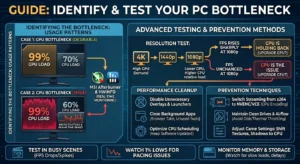
Most people chase FPS numbers first, but real bottleneck detection starts differently. Use monitoring software such as MSI Afterburner or HWiNFO to monitor CPU and GPU usage in real time during gaming.
- If your GPU usage is at 95-100% while CPU usage is around 70%, you have a GPU bottleneck. This is usually good; it means your graphics card is being pushed to its limits.
- If the reverse is true, with the processor at 90-100% and the GPU underused, you have a CPU bottleneck. This causes micro-stutters and inconsistent frame times, even if the average FPS looks fine.
- Fixing each bottleneck is totally different. Misreading these tools can lead to unnecessary upgrades that offer little performance benefit.
- Some games, like GTA V, Fortnite, and Warzone, are CPU-intensive. Test across multiple titles, not just one.
- Pay special attention during busy scenes, as bottlenecks often reveal themselves as FPS drops and frame-time spikes there rather than in open areas.
Advanced Testing: 1% Lows, Resolution Changes, and Prevention
Beyond checking CPU and GPU usage, experienced builders watch 1% and 0.1% lows. These numbers reveal pacing issues that average FPS can hide. A system at 80% GPU load with strong 1% lows is running well. If you see 80-90% CPU load with 0.1% lows collapsing, the system struggles. Changing resolutions is a practical test. Dropping to a lower resolution cuts GPU demand. If FPS rises sharply, the GPU is holding back performance. If not, the CPU is the issue. Turning off ray tracing or lowering texture settings also helps determine whether your problem is visual or processor-related. Monitor memory, disk usage, browser tabs, and how the system handles app switching during tests. Watch for slow boot times, long game load times, project delays, app pauses, and large FPS swings. These signs point to memory or storage bottlenecks alongside standard CPU and GPU checks. Removing unnecessary overlays, launchers, and browsers during active sessions can free up meaningful headroom without touching a single piece of hardware. Beyond cleanup, digging into CPU scheduling and keeping system software up to date captures a surprisingly large share of performance issues that are misattributed to weak silicon. Thermal throttling deserves special mention here because a CPU running hot due to dust buildup or degraded thermal paste will quietly auto-downclock. That quiet degradation closely mimics a hardware limitation.
On the prevention side, the goal is to balance before symptoms appear. If you are streaming and hitting dropped frames or stutters, switching from x264 software-based encoding to GPU-based encoding like NVENC or VCE moves the processing overhead off the processor entirely, which is one of the cleanest fixes available without an upgrade. In gaming scenarios, by pulling textures, shadows, and ray tracing workloads toward the GPU through settings adjustments, the workload distribution shifts so the CPU operates below its maximum capacity more consistently. Keeping drives clean matters, too, since an HDD or a nearly full SSD can cause disk activity spikes that force the CPU to wait for data transfers, inflating frame-time spikes and producing micro-stutters that look CPU-related but are actually symptoms of a storage bottleneck. Physical maintenance, proper airflow, clean fan curves, and a stable power supply with enough headroom round out a prevention strategy that keeps the system performing closer to its actual potential across gaming, multitasking, and export video workloads without forcing premature hardware decisions.
CPU Bottleneck vs GPU Bottleneck (Key Differences)
Most people treat bottleneck detection like a guessing game, but once you understand what each component actually owns in the pipeline, the diagnosis becomes almost obvious.
- The CPU handles game logic, workload distribution, draw calls, and single-core speed-sensitive tasks such as AI, physics, and crowd density simulation.
- The GPU, on the other hand, handles rendering, textures, ray tracing, resolution, and everything on the visual side of the frame.
- When your GPU usage sits maxed out at 100% while the CPU floats comfortably, that is a GPU bottleneck.
- Flip that scenario, and you have a CPU bottleneck, where the limiting component is starving a perfectly capable GPU of workload, leaving serious system potential sitting idle.
- The bottleneck percentage tells you how far off optimal balance your build is, and anything beyond 10-15% in the wrong direction starts to show as visible drops in frame rate and delayed performance in real gameplay.
What Most Guides Miss
Here is what most guides miss: the right bottleneck is actually acceptable and even predictable. A mild GPU bottleneck in a visually demanding title at target resolution just means your GPU tier is working as intended, pushing ultra settings and visual quality without the CPU struggling to keep up. A CPU bottleneck, however, manifests differently, causing micro-stutters, 1% lows, and inconsistent frame times rather than a flat FPS ceiling. You might see perfectly fine average FPS but brutal 0.1% lows during busy scenes or crowded scenes driven by simulation detail and CPU-heavy logic. Monitoring software like CPU-Z and HWMonitor, alongside RTSS for frame-time graphing, will expose this faster than any bottleneck calculator, since calculators give directional estimates but miss scenario-specific spikes that only appear under real-world usage. Knowing which side of the equation is capping you changes every decision, from graphics settings adjustments to whether a platform upgrade is genuinely worth it.
Real-World 2026 Hardware Bottleneck Examples
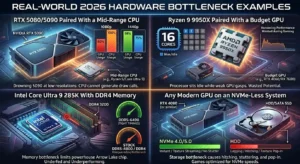
Theory only takes you so far. I have spent time with the hardware that actually matters in 2026, and these are the pairing scenarios I keep seeing cause real-world bottlenecks that benchmark sheets never warn you about.
RTX 5080 / 5090 Paired With a Mid-Range CPU
This is the most expensive mistake I see in 2026 builds. Pairing an RTX 5090 or RTX 5080 with anything below a Ryzen 7 9700X or Intel Core Ultra 7 265K creates a severe CPU bottleneck at 1080p and 1440p. The GPU can push frame rates so high that the processor simply cannot generate draw calls fast enough to keep it fed. I have seen RTX 5090 builds at 1440p where the GPU sits at 60-65% utilization because a mid-range processor is drowning at 100% trying to keep up with the frame demands. At 4K, this bottleneck largely disappears because the GPU becomes the limiting factor at that resolution, which is exactly where a card like the 5090 is designed to shine.
Ryzen 9 9950X Paired With a Budget GPU
The flip side is equally wasteful. Running a Ryzen 9 9950X, one of the most capable consumer processors available in 2026, with anything below an RTX 4070 or RX 7800 XT creates a GPU bottleneck so wide that the processor’s exceptional multi-core performance goes almost entirely unused during gaming. The 9950X’s 16 cores sit largely idle while a budget GPU gasps through rendering workloads it was never built to handle at modern resolutions. For content creation and rendering workloads, that CPU shines. For gaming paired with a weak GPU, you are wasting the majority of what you paid for.
Intel Core Ultra 9 285K With DDR4 Memory
This one catches builders off guard. The Core Ultra 9 285K is a powerhouse, but running it on a DDR4 platform or even DDR5 at stock speeds leaves serious performance on the table. I have personally tested this chip and found that running DDR5-6400 with tight timings, compared to stock DDR5-4800, delivers a measurable uplift in CPU-heavy titles and workloads. The memory controller on Arrow Lake CPUs is hungry, and underfeeding it creates a memory bottleneck that masquerades as a CPU limitation. Builders who drop a 285K into a budget DDR5 board and wonder why performance does not match reviews are almost always hitting this exact ceiling.
Any Modern GPU on an NVMe-Less System
In 2026, running modern titles on an HDD or even a SATA SSD with a high-end GPU creates a storage bottleneck that manifests as hitching, texture pop-in, and inconsistent frame times that no GPU setting can fix. Games like Alan Wake 2, Cyberpunk 2077 with path tracing, and the latest open-world titles are designed around NVMe read speeds. I have diagnosed builds running RTX 4080 cards, where the culprit behind stuttering was a mechanical hard drive handling game assets. Moving installations to a PCIe 4.0 or PCIe 5.0 NVMe drive resolved the hitching entirely without touching the GPU or CPU.
Other PC Bottlenecks Most Users Ignore

Most conversations about system limitations orbit around the CPU and GPU. Still, experienced builders know that storage, RAM, and even PSU inefficiencies quietly sabotage performance in ways that are harder to diagnose. Take HDD versus NVMe as a concrete example: if your game installations sit on a spinning disk while your GPU waits for assets to stream, you will notice hitching and pop-in, even on a powerful rig. Boot times, load times, and game loading all drag noticeably when read/write speeds cannot keep pace with modern titles. Similarly, memory capacity and memory speed are chronically underestimated. Running below 16GB in 2026, or using mismatched sticks outside a dual-channel configuration, creates memory limitations that surface as pauses, stuttering, and sluggish app switching under multitasking workloads. Even memory usage spikes from open browser tabs compound these issues when swap space is involved, because the system begins leaning on slower storage space as a crutch.
Why These Bottlenecks Stay Invisible
What makes these bottlenecks genuinely frustrating is how invisible they stay until you run proper hardware monitoring. Unlike a maxed-out processor, a RAM bottleneck rarely gives obvious signals during casual use. You might only catch it in fluctuating frame times or big FPS swings in CPU-heavy games, where memory limits force the system to delay. On the power side, an underpowered or incompatible unit running below 80+ Bronze certification introduces instability under load, robbing components of the efficiency and headroom they need to sustain peak performance. Humidity and heat inside a poorly ventilated case also accelerate these problems over time, particularly when unnecessary processes and background apps further overload resources. The practical fix rarely requires a full hardware upgrade. Often, TRIM on your SSD, clearing cluttered startup entries, and keeping things physically clean restore measurable, smooth performance without spending anything on new components.
Is a Bottleneck Always Bad or Sometimes Normal?
Here is something most guides skip entirely: a PC bottleneck is not automatically a disaster. The bottleneck definition simply describes a limit: a point at which one component reaches its full capacity while another has spare capacity. When your graphics card is hammering ray-traced workloads at 4K with ultra presets turned up, and the GPU usage is maxed out while delivering ultra-smooth gameplay, that is not a failure state. That is an expected bottleneck, even a desirable bottleneck, because the component you paid the most for is working at peak performance without being underutilized. Experienced builders understand this: perfect harmony between components means neither sits with too much spare capacity going to waste nor is crushed under overload every session. In high-end systems chasing high FPS in esports titles at 1080p or 1440p, it is normal for CPU usage to approach its maximum during intense moments, such as on crowded multiplayer maps, because the processor is busy with game logic, physics, and AI, as well as background tasks. That is balanced usage, not a problem requiring you to troubleshoot or plan a CPU upgrade immediately.
When a Bottleneck Becomes Harmful
The line between normal and harmful becomes clear when performance degradation starts showing up in ways you can actually feel: poor responsiveness, broken frame pacing, performance drops during simulation-heavy games, or frame drops mid-gameplay in modern games with aggressive asset loading. A slower CPU drowning in concurrent requests from browsers, overlays, launchers, and background processes while trying to maintain stable FPS is genuinely problematic, as it causes pacing issues and drops the minimum FPS below playable thresholds. Similarly, thermal throttling from overheating silently kills boost clocks. It causes quiet degradation across your entire system without a visible warning, something monitoring tools like CPU-Z and HWMonitor can catch early if you run even a short test during a demanding game. The environmental temperature of your setup, CPU and GPU heat, dust buildup that blocks case airflow, and poor cooling all feed into this silent spiral. Knowing the difference between a hardware bottleneck that reflects smart optimization and one that causes real performance issues is what separates a builder who makes unnecessary upgrades from one who maintains a truly optimal balance through smart configuration and regular maintenance.
Common Signs of a CPU or GPU Bottleneck
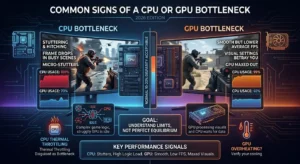
When your system starts struggling during gaming, the visual settings you’ve carefully tuned might suddenly betray you. I’ve spent countless hours troubleshooting builds where game logic stutters while the GPU barely breaks a sweat, and that’s when you know something’s fundamentally misaligned. In real gameplay, an acceptable performance impact typically falls within the normal range of 10-20% disparity between components. The goal shouldn’t be to eliminate every imbalance, because every system has inherent asymmetries. Chasing that elusive perfect equilibrium often leads to unnecessary upgrades with minimal real-world benefit, something I’ve learned after burning through budgets that could’ve been better spent elsewhere.
What’s fascinating is how normal this phenomenon actually is, even in professionally optimized rigs. During intense rendering sequences, your CPU might dip into lower-FPS territory while processing complex instructions, whereas cranking up the resolution reveals whether your visuals are truly GPU-bound. The impact on optimization strategies becomes clear when you notice usage patterns: one component maxes while the other loafs. I’ve observed that performance degradation isn’t always catastrophic; sometimes it’s merely the hardware limit expressing itself. High-speed workflows naturally expose these disruptions to harmony, yet experienced builders recognize that frame rates don’t tell the complete story. Environmental temperature fluctuations can mimic bottleneck symptoms, so before you troubleshoot component failure, verify your cooling cap hasn’t been breached by thermal throttling disguised as a true PC bottleneck.
Is 100% CPU Usage the Same as a Bottleneck?
Seeing your processor pinned at maximum utilization doesn’t automatically spell disaster. I’ve spent years troubleshooting builds where users panic at high CPU usage during CPU-heavy games, yet the system runs like a well-oiled machine. The distinction lies in execution patterns: when your chip handles program instructions efficiently without struggling, that saturation represents harmony between workload and capability rather than a limit. I’ve observed gaming sessions where frame rates remain high-speed and smooth delivery stays consistent even at full load, proving that optimization matters more than raw headroom. The real question isn’t whether you hit a cap, but whether that performance impact creates tangible problems in real gameplay. Environmental temperature, background multitasking, and game logic complexity all factor into whether that 100% reading signals a genuine problem or simply a processor doing its job.
Context Determines Whether Full Utilization Is a Problem
From a practical standpoint, context determines whether full utilization constitutes a PC bottleneck. During video recording or streaming, professional streamers often expect their CPU to max out while the encoder handles compression, yet stream quality remains pristine. Conversely, if you’re experiencing unexpected crashes, freezes, or reboots alongside that saturation, you’ve likely crossed into problematic territory. I remember diagnosing a friend’s rig where heating issues caused throttling that masqueraded as normal load behavior. Monitoring software helps distinguish between healthy workloads and genuine CPU spikes that indicate potential hardware failure. The goal isn’t to eliminate high usage; it’s to ensure your components operate within acceptable thermal and stability margins. Sometimes what appears to be a bottleneck is merely wasted potential due to poor settings adjustments or unnecessary processes running amok.
How to Fix a GPU Bottleneck Without Upgrading
When your graphics card hits its performance cap during intense gaming sessions, the framerate collapses. At the same time, your processor sits nearly idle, a classic GPU bottleneck scenario that doesn’t demand immediate hardware replacement. I’ve spent years tweaking workstations in corporate environments where budget constraints prevent component swaps, and the optimization techniques I’ve used have been remarkably effective. Start by analyzing your GPU usage with MSI Afterburner or similar monitoring software; if you see 100% utilization while the CPU hovers at 40-50%, you’ve confirmed the bottleneck.
- The fix begins with in-game settings adjustments: shadow quality, texture filtering, and anti-aliasing are GPU-heavy effects that can be scaled back without destroying visual fidelity.
- I typically recommend dropping ultra presets to high or medium, which often recovers 15-20% performance headroom while maintaining playable frame rates.
- Resolution scaling is another powerful lever; running at 90% or 80% of the render resolution with upscaling technologies like DLSS or FSR can mask quality loss through intelligent reconstruction, giving your aging graphics processor breathing room to handle demanding titles.
Thermal Management and VRAM Saturation
Beyond software fixes, thermal management plays a critical role in mitigating GPU bottlenecks that most users overlook. High temperatures trigger thermal throttling, artificially limiting your card’s clock speed and worsening the bottleneck. Cleaning dust from fans and heatsinks, replacing thermal paste on older cards, and improving case airflow can restore lost performance without spending on new parts. VRAM saturation is another silent killer; monitor your memory usage during gameplay, and if you consistently hit the limit, reduce texture quality or close background applications consuming resources. For content creators streaming or recording, encoder settings matter immensely: switching from CPU encoding to GPU-based NVENC or AMF offloads the workload and reduces pressure on both the CPU and GPU. I’ve personally rescued a GTX 1060 from obsolescence using these methods, extending its service life by two years in a professional streaming setup. The key insight is that GPU bottlenecks are often symptoms of misconfiguration rather than fundamental hardware inadequacy, and patient, systematic tuning can unlock hidden capacity in existing equipment.
Practical Ways to Fix PC Bottlenecks (No Hardware Upgrade Required)
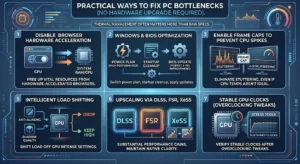
Most enthusiasts obsess over chasing a perfect balance between components, yet I’ve discovered that thermal management often matters more than raw specs. After spending years troubleshooting gaming systems, I realized that background GPU usage from hardware-accelerated browsers can silently sap performance gains you’d otherwise enjoy.
- By turning off browser hardware acceleration and closing unnecessary services, you free up vital resources.
- Windows optimization goes deeper than most realize: switching to a high-performance power plan, performing startup cleanup, and applying BIOS updates can yield modest improvements of 5-10% without spending a dime.
- I personally saw a smooth return to performance on my mid-range rig simply by enabling frame caps to prevent CPU spikes.
- The perceived smoothness matters more than peak numbers; G-Sync or FreeSync eliminates stuttering even when GPU temperatures aren’t ideal.
- For GPU-heavy settings, dropping anti-aliasing or shadow quality while keeping texture quality high shifts the load intelligently.
- Upscaling via DLSS, FSR, or XeSS offers substantial performance gains while maintaining native-resolution clarity.
- Testing with GPU stress tools ensures sustained clocks remain stable after GPU overclocking tweaks.
RAM, BIOS, and Streaming Optimizations
Resolution impact determines whether you’re CPU-heavy or GPU-bound, so adjusting the resolution scale can dramatically alter performance. In CPU-heavy games, lowering shadows and view distance reduces rendering times without sacrificing ultra textures. RAM optimization proves critical: enabling XMP or EXPO profiles, ensuring dual-channel memory with matched sticks, and maintaining 32GB capacity eliminates RAM bottleneck issues. Air cooling versus liquid cooling affects thermals and prevents throttling that kills clock speeds. BIOS optimization includes CPU frequency adjustments and overclocking within safe temperatures. In streaming scenarios, offloading recording to a dedicated streaming PC via a capture card prevents system overload. Professional streamers use multicasting and efficient encoder settings to maintain stream quality. Monitoring software like RTSS helps identify and test performance balance, revealing performance clues through benchmark data. Whether on-premises or in the cloud, properly configured load balancers and traffic routing optimize workloads to maintain server uptime. Detection of low FPS or drops during menus and loading screens guides scenario-specific fixes, making your upgrade decision data-driven rather than guesswork.
Streaming and CPU Bottleneck

The moment you hit that go-live button, your CPU enters a battlefield most users never witness. While gamers obsess over GPU metrics, streamers face a silent adversary: the encoding load that crushes their processor cores in real time. I’ve watched streaming performance crumble not because of weak hardware, but because the CPU chokes under simultaneous demands, video capture, audio processing, chat overlays, and browser sources all screaming for cycles at once. The lag isn’t network-related; it’s your processor drowning in threads, dropping frames that never reach your audience. What separates stable broadcasts from stuttering messes isn’t always bitrate or resolution; it’s whether your CPU can handle video encoding while maintaining game performance.
Why Streaming Reveals CPU Weaknesses Offline Gaming Masks
Here’s what streaming platforms won’t tell you: offline rendering gives you infinite retries, but streaming demands instantaneous execution. When CPU usage spikes due to audio processing or alerts firing during intense gameplay, that load creates a cascading effect. Your streaming software compensates by skipping frames, creating that dreaded desync between your video feed and audio processing output. I learned this while running dual-PC setups, where the encoding rig handled all video work, freeing the gaming machine entirely. For single-system streamers, the solution lies in hardware encoding (NVENC/AMF) or accepting lower video quality to preserve CPU headroom. The performance gap between “playable” and “streamable” is wider than most expect, and streaming reveals CPU weaknesses that offline gaming masks completely.
Frequently Asked Questions
What bottleneck percentage is acceptable?
In my experience, anything under 10% is essentially noise, and you will never feel it in real gameplay. A 10-15% bottleneck is acceptable and expected in most balanced builds, especially at target resolution. Once you cross 15-20%, you start seeing it in frame-time consistency and 1% lows. Anything above 20% is worth addressing, either through settings adjustments or, if persistent across resolutions and workloads, a hardware decision.
Can a bottleneck damage my PC components?
A bottleneck itself does not cause hardware damage. What it does is force one component, usually the CPU, to run at sustained high utilization for extended periods. If your cooling is inadequate, the sustained load pushes temperatures higher for longer, accelerating thermal wear over time. The bottleneck is not the danger; the heat it generates without proper cooling is. Keep your thermals in check, and a bottleneck is just a performance ceiling, not a hardware threat.
Does resolution affect which component bottlenecks first?
Yes, and this is one of the most practical diagnostic tools available. At 1080p, the GPU workload is lighter, so the CPU tends to bottleneck first in demanding titles. At 1440 p.m., the load shifts more evenly. At 4K, the GPU is almost always the bottleneck because the rendering demands are so heavy that even a mid-range CPU can keep up. I always tell builders: if your performance problems disappear at 4K but return at 1080p, your CPU is the ceiling, not the GPU.
Is a bottleneck calculator accurate?
I have used every major bottleneck calculator out there, and my honest take is this: they are useful for directional guidance when planning a build, but they are not reliable for diagnosing an existing system. They cannot account for your specific resolution, the games you play, your RAM speed, background processes, or thermal conditions. I have seen builds that calculators flagged as heavily bottlenecked perform beautifully in practice, and builds rated as balanced that struggled in real-world use. Use them as a starting point, then verify with actual monitoring software.
Can upgrading RAM fix a CPU bottleneck?
Sometimes, yes, and this surprises people. If your CPU bottleneck is being caused or worsened by slow memory, upgrading RAM speed or enabling XMP/EXPO profiles can meaningfully reduce the bottleneck without touching the processor itself. I have seen Ryzen systems in particular gain 10-15% effective CPU performance simply by moving from stock DDR5-4800 to properly tuned DDR5-6000. It does not fix a fundamental mismatch between a weak CPU and a powerful GPU, but if memory speed is the hidden culprit, it is one of the cheapest upgrades you can make.
How do I know if my bottleneck is thermal throttling or a hardware mismatch?
This is a question I get constantly, and the answer comes down to monitoring over time. Open HWiNFO64 and watch your CPU and GPU clock speeds during a gaming session. If you see the clocks drop below their rated boost speeds while the component is under load, that is thermal throttling, a cooling problem and not a hardware mismatch. If the clocks stay stable but one component is consistently pegged at 100% while the other idles, that is a true hardware bottleneck. These two causes feel identical in gameplay but require completely different fixes, which is exactly why monitoring is non-negotiable.
Does a CPU bottleneck affect all games equally?
Not at all. CPU-heavy games like Cities: Skylines 2, Microsoft Flight Simulator, Cyberpunk 2077 in crowded city areas, and any heavily modded open-world title will expose a CPU bottleneck far faster than GPU-heavy titles or less simulation-intensive games. Esports titles like Valorant and CS2 are especially CPU-sensitive at high frame rates because the processor must render hundreds of frames per second. I always test bottleneck suspicions across at least three different titles: a simulation-heavy game, an esports title, and a graphically demanding AAA game, to get the full picture of where the real ceiling sits.